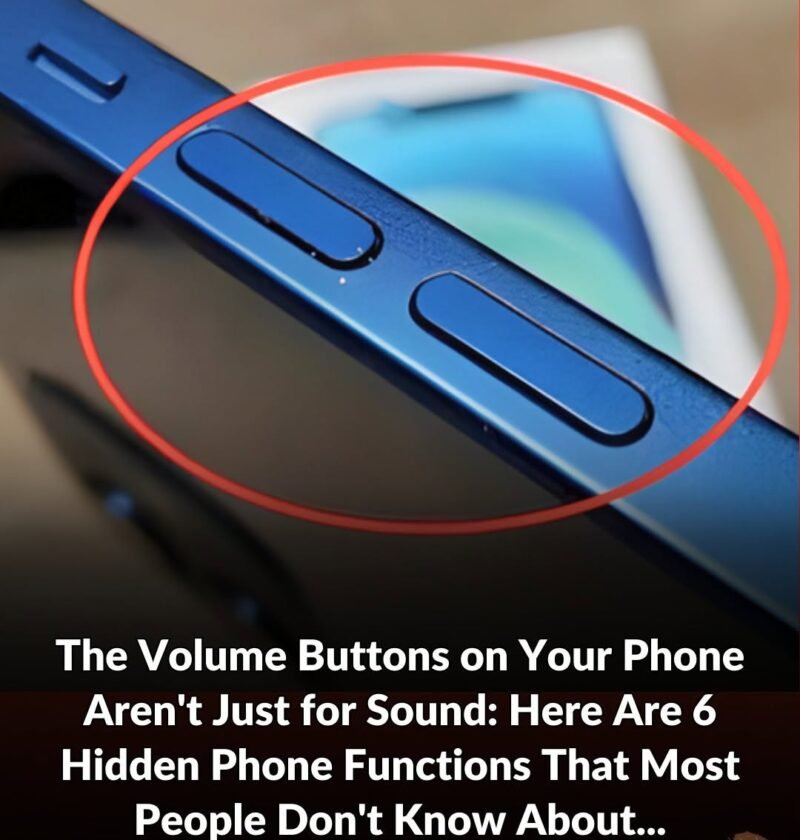
Real Built-In Volume Button Shortcuts vs. Viral Clickbait Claims
| Shortcut / Use Case | How It Works on iPhone (iOS) | How It Works on Android | Reality Check |
| 1. Camera Shutter & Quick Video | Press Volume Up or Down in the Camera app to snap a photo; press and hold either button to record QuickTake video (or Volume Up for Burst if enabled in Settings). | Press Volume Up or Down in the Camera app to take a photo (can often be switched to zoom or record video inside Camera settings). | 100% real & practical—reduces hand shake for sharper one-handed shots and selfies. |
| 2. Mute Incoming Calls & Snooze Alarms | Press either volume button once while ringing to silence the ringtone without declining the call; press to snooze an active alarm. | Press either volume button to mute an incoming ringtone or snooze/dismiss an alarm (adjustable in Clock settings). | 100% real—built into virtually every smartphone. |
| 3. Screenshot & Power / Emergency SOS | Side + Volume Up captures a screenshot; press and hold Side + either Volume button opens Power Off, Medical ID, and Emergency SOS. | Power + Volume Down captures a screenshot; Power + Volume Up (on modern Android versions) opens the Power & Emergency menu. | 100% real—standard system hardware combinations. |
| 4. Force-Restart a Frozen Phone | Quickly press Volume Up, quickly press Volume Down, then press and hold the Side button until the Apple logo appears. | Press and hold Power + Volume Down for ~10–15 seconds until the phone vibrates and reboots (varies slightly by brand). | 100% real—essential hardware-level reset when a touchscreen locks up. |
| 5. E-Book Page Turner | Works in select third-party reading apps (such as Kindle when volume page-turn is enabled in app settings). | Supported natively inside Google Play Books and Kindle (Settings > Turn Pages with Volume Controls). | Real, but app-specific—does not scroll general web browsers natively. |
| 6. “Secret battery reset, signal booster, or hidden flashlight” | Not built in (newer Pro/15+ iPhones use a dedicated Action Button for flashlight/shortcuts, not the volume keys). | Not built in natively on most devices without third-party remapping tools (such as Button Mapper or Samsung Good Lock / RegiStar). | Clickbait myth—no volume combination improves battery health, boosts signal, or unlocks hidden spy modes. |
Two Practical Cautions Before Installing “Button Mapper” Apps
-
Accessibility permission privacy risk: Third-party Android utilities that remap volume buttons to toggle a flashlight or launch apps require Accessibility Service permission, which technically allows an app to observe on-screen text and taps—stick to official manufacturer tools (like Samsung’s Good Lock modules) and skip random ad-heavy APK downloads.
-
Accidental pocket activation: Assigning double-press or long-press volume actions to a flashlight or camera often triggers accidentally inside tight pockets or car mounts, draining battery or filling your gallery with blank photos.
Two Built-In Habits Worth Using Right Away
-
Keep your force-restart combo in muscle memory: Knowing Volume Up → Volume Down → Hold Side (iPhone) or Hold Power + Volume Down (Android) lets you recover a frozen device in seconds without waiting for the battery to drain.
-
Use a volume key as a physical shutter button: When taking photos in dim light or one-handed, hold the phone steady with both hands and squeeze a volume button instead of tapping the glass screen to minimize motion blur.