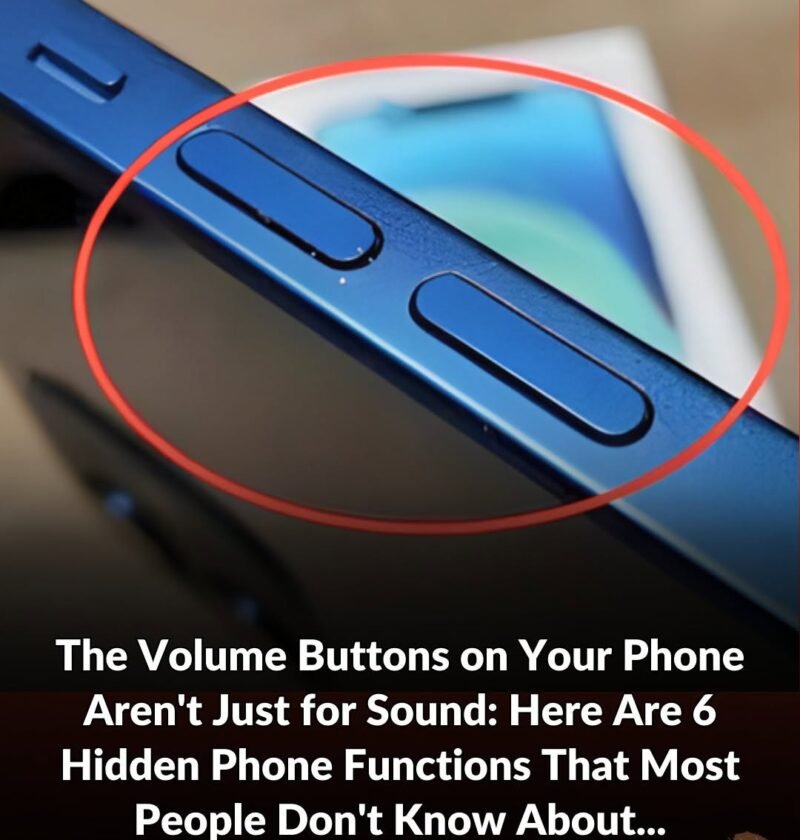
Real Built-In Volume Button Shortcuts vs. Viral Clickbait Claims
| Feature / Shortcut | How It Works on iPhone (iOS) | How It Works on Android | Reality Check |
| 1. Camera Shutter & Video Burst | Press Volume Up or Down in the Camera app to take a photo; press and hold either button to record QuickTake video (or Volume Up for Burst if enabled in Settings). | Press Volume Up or Down in the Camera app to snap a photo (can often be set to zoom or record video in Camera settings). | 100% real & super useful—reduces camera shake when taking one-handed photos or selfies. |
| 2. Silence Incoming Calls & Snooze Alarms | Press either volume button once while the phone rings to mute the ringtone without hanging up; press to snooze an alarm. | Press either volume button to mute an incoming ringtone or snooze/dismiss an alarm (customizable in the Clock app). | 100% real—built into virtually every smartphone. |
| 3. Screenshot & Power / Emergency SOS | Side + Volume Up takes a screenshot; press and hold Side + either Volume button brings up Power Off, Medical ID, and Emergency SOS. | Power + Volume Down takes a screenshot; Power + Volume Up (on newer Android versions) opens the Power & Emergency menu. | 100% real—standard system hardware combinations. |
| 4. Force-Restart a Frozen Screen | Quickly press Volume Up, quickly press Volume Down, then press and hold the Side button until the Apple logo appears. | Press and hold Power + Volume Down for ~10–15 seconds until the phone vibrates and reboots (varies slightly by brand). | 100% real—essential hardware-level reset when a touchscreen freezes. |
| 5. Page Turner in E-Book Readers | Works in select third-party reading apps (like Kindle with page-turn animations/volume option enabled) when supported by the app. | Supported natively inside apps like Google Play Books and Kindle (Settings > Turn Pages with Volume Controls). | Real, but app-dependent—not a universal system-wide browser scroller. |
| 6. “Secret battery saver, signal booster, or hidden flashlight” | Not built in (except via the iPhone Action Button on newer Pro/15+ models, which is a separate button). | Not built in natively on most phones without installing a third-party utility like Button Mapper (or Samsung Good Lock / RegiStar). | Clickbait exaggeration—no secret volume combo boosts Wi-Fi, battery life, or hidden spy modes. |
Two Caution Points Before Installing “Button Mapper” Apps
-
Accessibility permission privacy risk: Third-party Android apps that let you remap volume buttons to launch flashlights or apps require Accessibility Service permission, which technically lets an app read screen activity—stick only to well-reviewed, reputable tools (like Samsung’s official Good Lock modules) and avoid random ad-heavy APK downloads.
-
Accidental pocket triggers: Remapping double-press or long-press volume actions to a flashlight or camera can drain your battery or fill your gallery with black pocket photos when the buttons press against tight pockets or car mounts.
Quick Setup Worth Enabling Right Now
-
Test your force-restart combo once so you know it cold: Knowing Volume Up → Volume Down → Hold Side (iPhone) or Hold Power + Volume Down (Android) saves panic if an app ever locks up your screen.
-
Use Volume Up/Down as a steady camera shutter: Next time you take a photo in low light or with one hand, hold the phone with both hands and squeeze a volume button instead of tapping the glass screen to keep shots sharper.