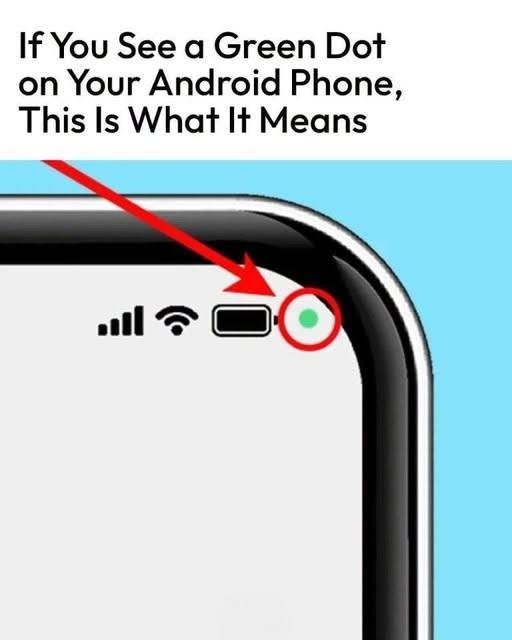
What the Green Dot Means
-
Camera or Microphone is Active: Whenever any app uses your camera or mic—even briefly in the background—Android turns on this dot so an app cannot record audio or video silently without your knowledge.
-
Normal vs. Suspicious:
-
Completely normal when you are on a video call (WhatsApp, Zoom, Google Meet), recording a voice note, using Google Assistant/Gemini, taking a photo, or using social media apps like Instagram or Snapchat.
-
Worth checking if the dot appears while your phone is idle on the home screen or while using an app that has no reason to use a camera or mic (like a flashlight, calculator, or wallpaper app).
-
How to See Exactly Which App Is Using It
-
Swipe down from the top of your screen to open the Quick Settings shade.
-
Tap the green pill/icon in the top-right corner (showing a camera, microphone, or location symbol).
-
Android will display a pop-up naming the exact app currently using that sensor, along with a shortcut to revoke its permission if you don’t trust it.
Quick Privacy Check If Something Looks Off
-
Open Settings > Security & privacy > Privacy dashboard to view a 24-hour timeline of every app that accessed your camera, microphone, or location.
-
For apps that don’t strictly need live background access, set permissions to Only while using the app or Ask every time.