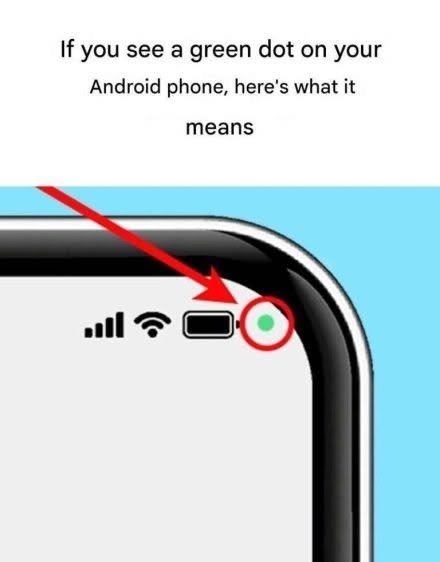
What It Tells You
-
Normal activity: The dot lights up automatically whenever you make a phone or video call, record a voice message, take a photo, scan a QR code, or use a voice assistant like Google Assistant or Gemini. It may also linger for a few seconds after you close an app while the system finishes shutting down the sensor session.
-
When to double-check: If the dot appears while your phone is sitting idle on the home screen, or while you are using a basic app (such as a calculator, game, or wallpaper app) that has no legitimate reason to use your camera or microphone, an app may be accessing sensors in the background.
How to Check Which App Triggered It
-
Swipe down from the top of your screen to open Quick Settings.
-
Tap the green icon/pill in the top-right corner (it will show a camera, microphone, or location symbol).
-
Android will display a pop-up naming the exact app using that sensor. Tap the app name to open its Permissions page and switch access to Ask every time or Don’t allow if it doesn’t need it.