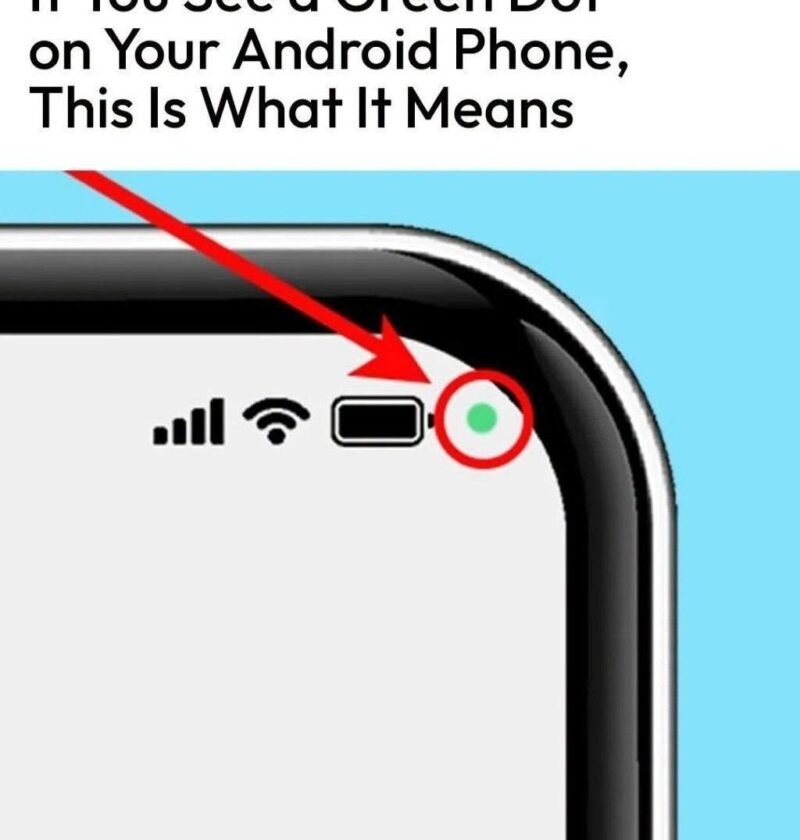
How to Read the Indicator
-
Camera Icon $\rightarrow$ Green Dot: An app is currently using the camera.
-
Microphone Icon $\rightarrow$ Green Dot: An app is currently recording or listening through the microphone.
-
Camera + Microphone Icons $\rightarrow$ Green Dot: Both are active at the same time (normal during video calls).
-
Expected vs. Unexpected: Seeing it during a WhatsApp video call, voice note, camera photo, or Google Assistant prompt is normal. Seeing it while your phone is sitting idle on the home screen or while using an app that shouldn’t need audio/video (like a flashlight, wallpaper, or basic game) is worth checking immediately.
How to See Which App Triggered It (and Revoke Access)
-
Check the Live Trigger in Quick Settings: Swipe down from the top of your screen to open the notification shade / Quick Settings panel and tap the green icon at the top. Android will display the exact name of the app currently using—or that just used—your camera or microphone.
-
Review App Permissions: Open Settings > Privacy > Permission manager (on Samsung Galaxy devices, look under Settings > Security and privacy > Permission manager; on Xiaomi/Redmi/Oppo/Vivo, search “Permission manager” in Settings), then inspect Camera and Microphone.
-
Restrict Unnecessary Apps: For any app that does not genuinely need camera or mic access, switch it to Don’t allow or Ask every time. Enable Remove permissions if app isn’t used if available.
-
Uninstall Suspicious Apps: Open Settings > Apps, sort by recently installed or unfamiliar names, and uninstall anything you don’t recognize—especially apps downloaded outside the Google Play Store (APK files).